Mass Airtime Top-ups Help
Overview
The Chura Mass Airtime Top-up service enables you to easily make, manage and track your airtime top-ups to multiple phone numbers in different networks.Signing up
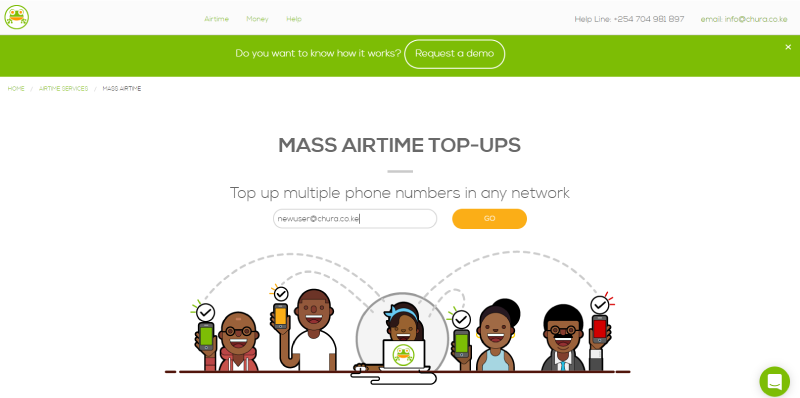
To begin using the service, just go to www.chura.co.ke/masstopup. You'll be guided through the sign up process
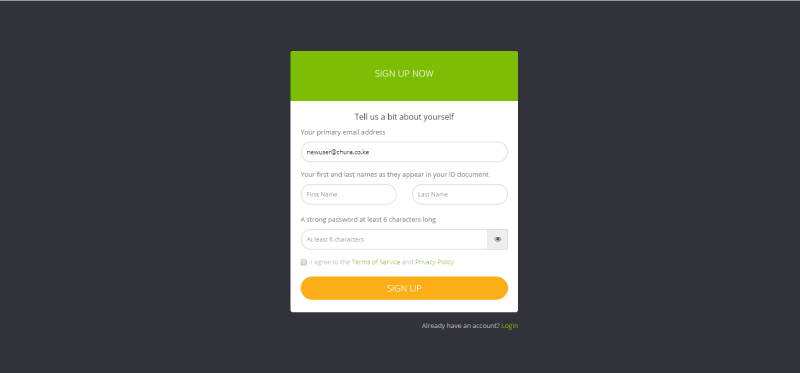
Indicate your details as requested in the form as in the figure below
Loading your account
In order to make top-ups you will need to Load your mass airtime top-ups account with funds. To do this, follow the steps below:
-
The first step is to initiate the process. There are several ways to do this
-
You can start off by hitting the Load balance button on the Overview page
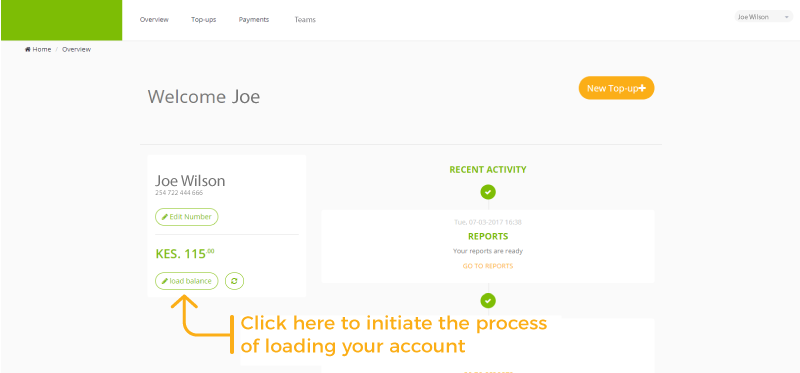
Initiating the process of loading account from the overview page -
The other option is to select payments tab on the navigation bar and then clicking the Load balance button on the payments page
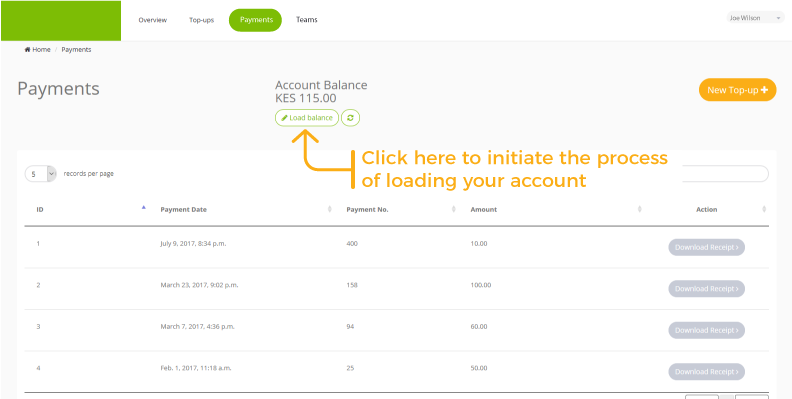
Initiating the process of loading account from the Payments page
-
-
Once you do that a popup will appear showing the payment options available
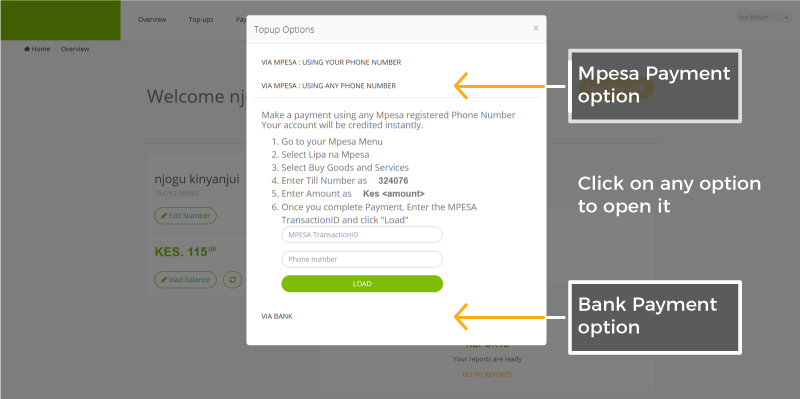
The available payment options to load your account 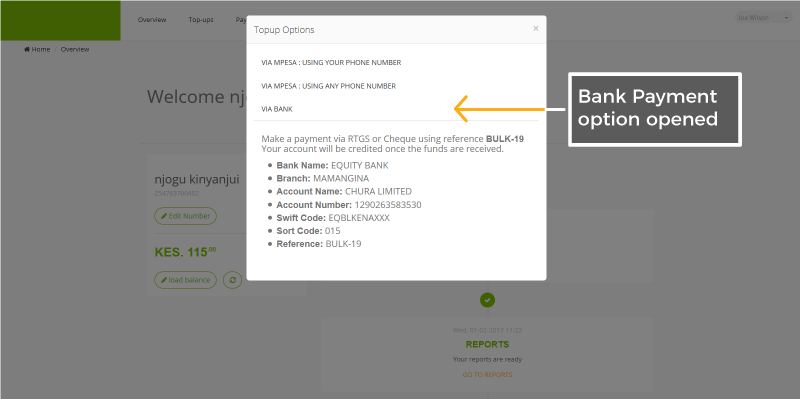
The bank payment option open
Topping up phone numbers
There are several ways to initiate the process of topping up phone numbers. Here are two of them:
-
You can hit the New Top-up button on the Overview page
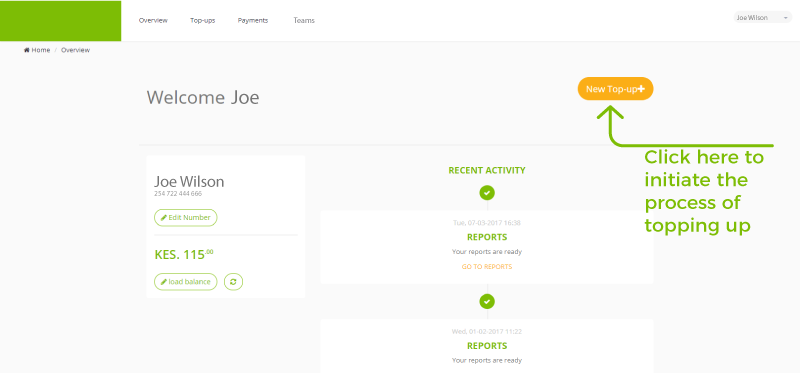
Fig.3 - Initiating the top-up process from the overview page -
The other option is to go to the Top-ups page hit the New Top-up button
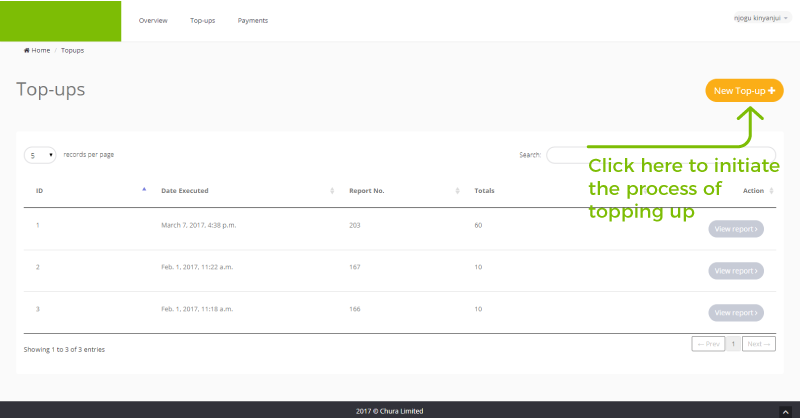
Fig.4 - Initiating the top-up process from the Top-ups page
In order for you to be able to distribute airtime across many numbers you will need to:
- Upload the list with the number and amount to be sent
- Credit your balance with Chura
- Execute the top-ups
Uploading Lists
The process of uploading the list of numbers is as follows.
- Collect your top-up information. All you need is a phone number, the top-up amount, and the organization/sender.
- Create your top-up file. You can use a text editor e.g Notepad or a Spreadsheet application like Microsoft Excel.
-
Arrange your information. The first line must be the fields, 'number', 'amount', 'organization' in that order
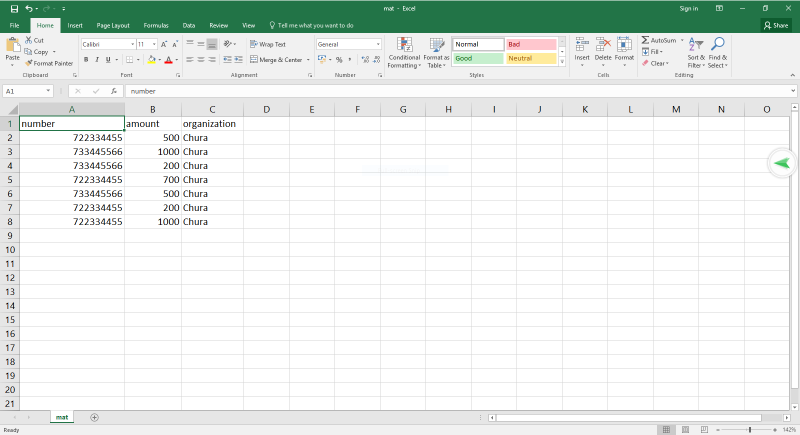
Fig.5 A sample csv file in Microsoft Excel showing the arrangement of fields - Once you enter your data, save the file as Comma Seperated File(.csv)
-
Upload your file. Chura will scan your file for errors and allow you to review and confirm your top-ups
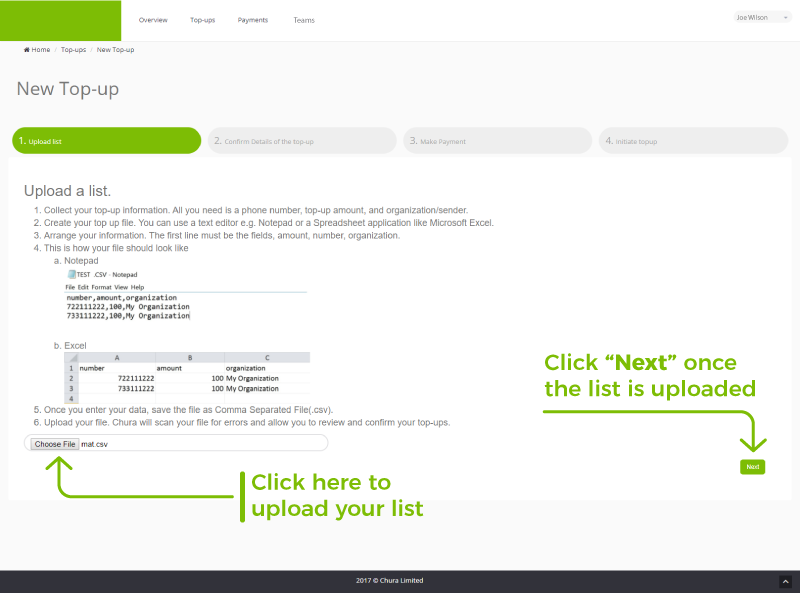
Fig.6 - Uploading a top-up list 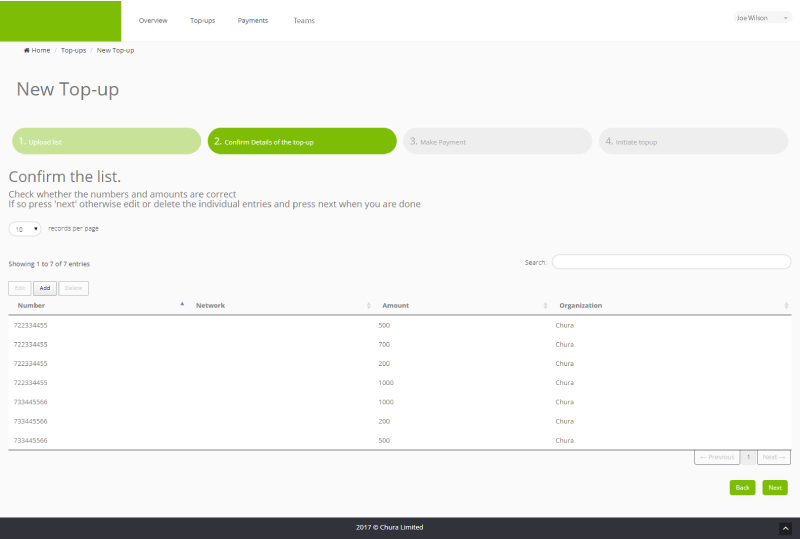
Fig.7 - A view of the uploaded list
Once you have reviewed and confirmed your top-ups and hit "Next" , you will be asked, where applicable, to credit your balance in order to pay for the airtime. There is a chance you'll already be having enough funds to be able to facilitate the top-ups having loaded the funds as described here
You can either make payments via Mpesa or the bank following the steps outlined in the figures below
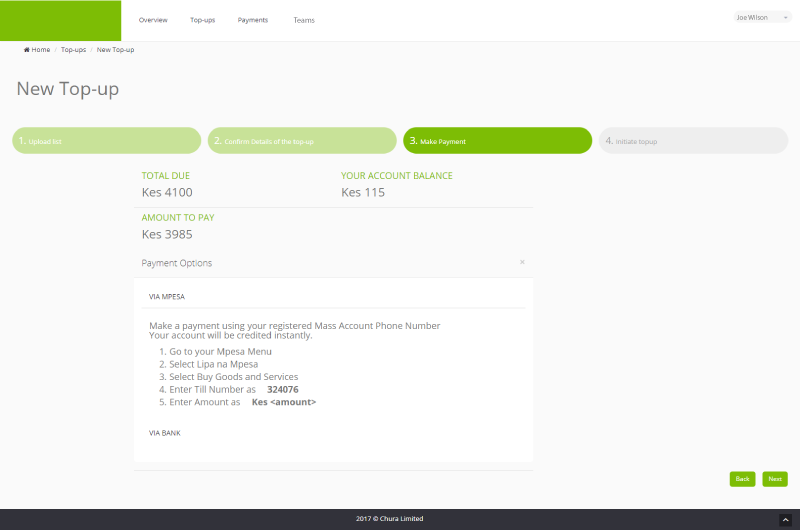
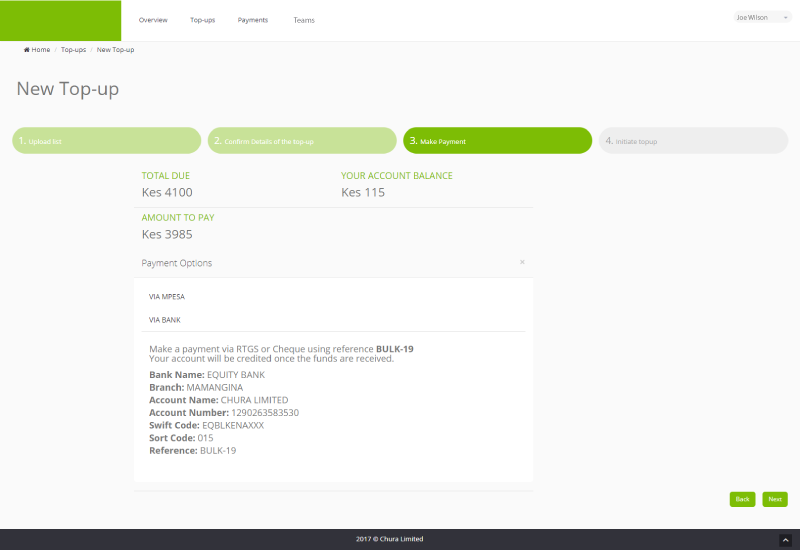
When you make the payments hit "Next"
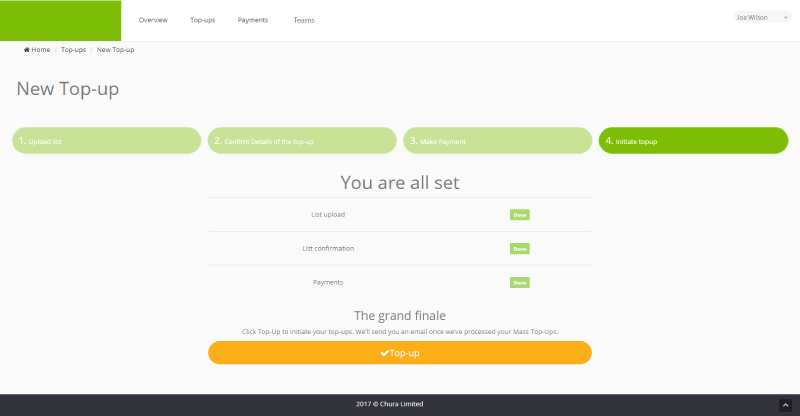
Executing Top-ups
All you need to do now is click Top-up
Re-executing Lists
When you execute a top up to a list of numbers, the transaction is saved in the Top-ups page which you can access by clicking on the Top-ups tab on the navigation bar.
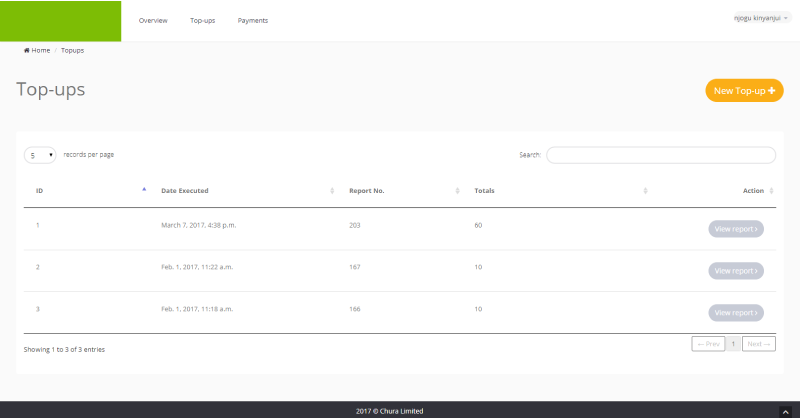
On this page you can view details about your top ups such as the total amount topped up, the phone numbers topped up and the date and time of the top up. You do this by hitting on the View Report on the top up transaction.
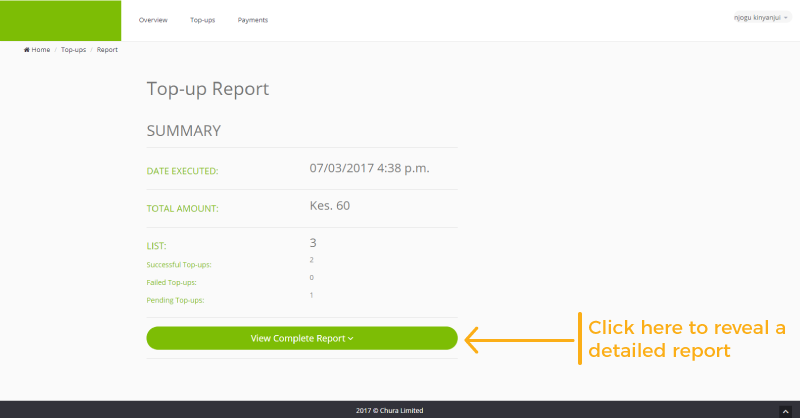
In order to execute top-ups to a list again just hit the Top-up this List button.
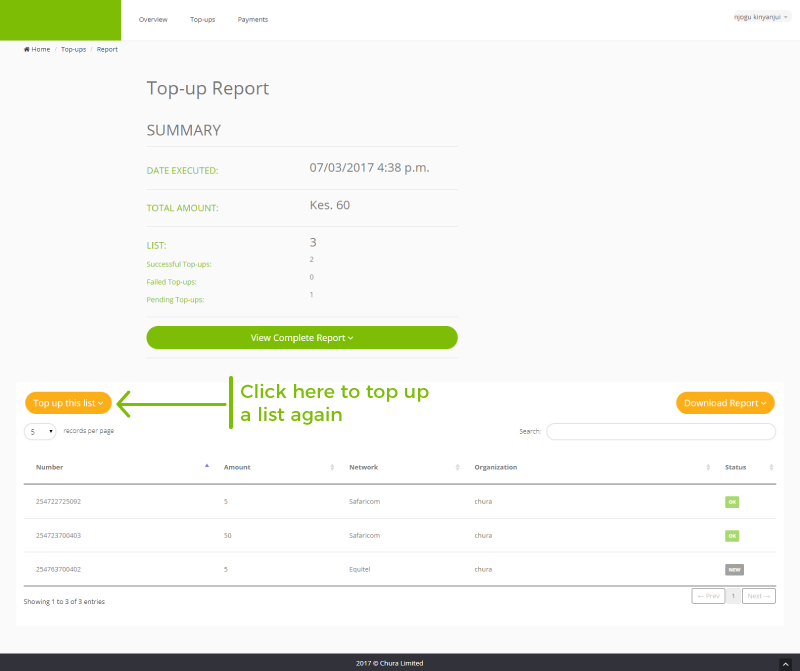
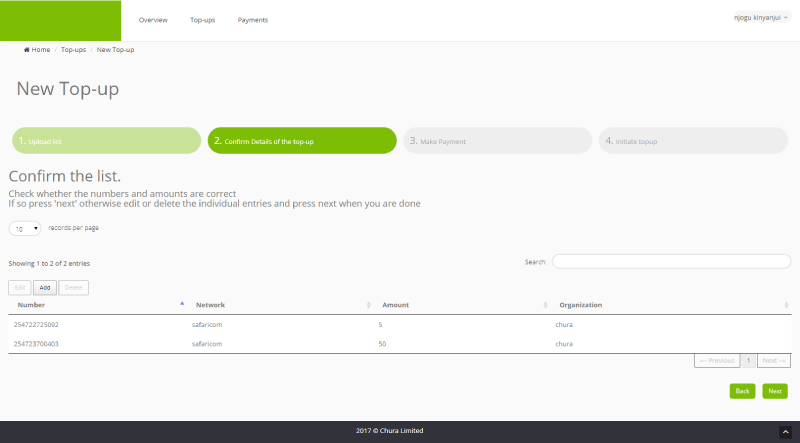
This takes you directly to the second step of topping up a list.
Editing Lists
At this step you may require to update the list in order to reexecute it.
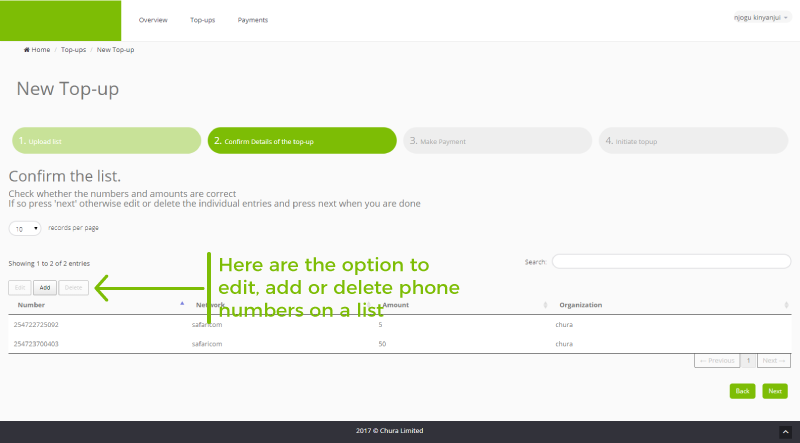
Here you can add more numbers, delete and even edit others.
In order to edit or delete a phone number, just select it and the 'edit' and 'delete' buttons will become active.
Managing Teams
Depending on the structure of an organization, the Mass Airtime Top-up service allows you to create a team and allocate different roles to each member.
To do this go, to the teams page by selecting the Team tab on the navigation bar.
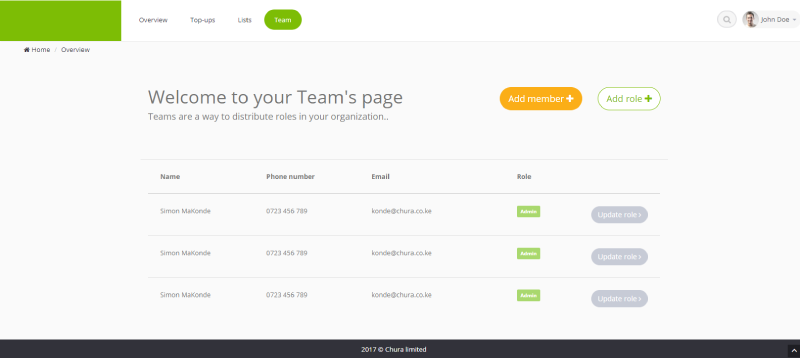
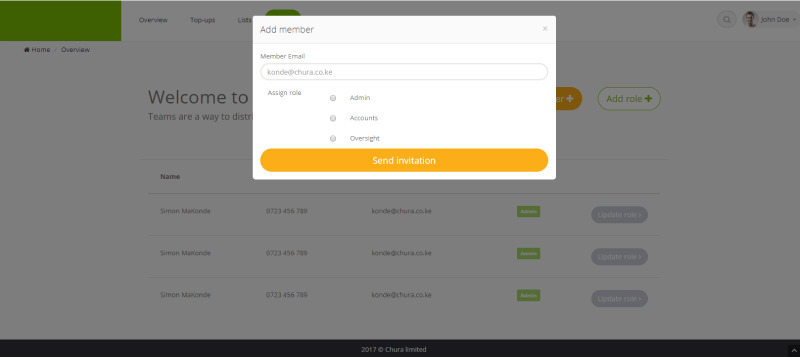
To add a member to the team just hit the add member button and then indicate their email address and their role. Once they log in or sign up the automatically assume the role you allocated them.